Posts

Showing posts with the label SSRS

SharePoint BI - How to fix SSRS Issues
Image
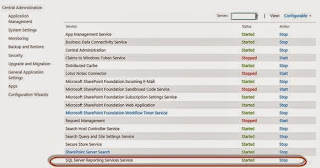
SQL Server Reporting services can be used and configured in Integrated Mode and Native mode as well. There are some noticeable differences between both modes.   SSRS in SharePoint Integrated Mode:   •        Use SharePoint document management and collaboration features. A SharePoint site provides a unified portal for accessing and managing all documents in one place. •        Use SharePoint permissions and authentication providers to control access to reports, models, and other items. •        Manage reports, models, data sources, schedules, and report history in custom application pages on a SharePoint site. We can set properties, define schedules and subscriptions, and create and manage report history on a SharePoint site the same way you create and manage them from other tools in SQL Server. •        Publish or upload reports, report models, resources, and shared data source files to a SharePoint library, including Report Center in Offic...

How to install SharePoint 2013 with SSRS 2012 Integrated Mode

Image
SQL Server Reporting Services can be hosted and configured inside SharePoint using SharePoint Integrated mode installation. In this way the Report Server setting has to be setup and configured from SharePoint central administration. If we try to access the Report Server from outside, it will error out and which is only possible in case of SSRS Native mode installation in SQL 2012. The configuration of SSRS inside SharePoint administration is quite different for SQL 2012 Vs. SQL 2008 or SQL 2008 R2. And, as a part of standard best practices, we will be creating two different SQL Database instances or servers for SharePoint and SSRS. I will go through step by step installation and configuration procedure of SSRS 2012 in SharePoint 2013.   1.        Operating System: We can have this combination installed in two different Server Operating Systems (Windows Server 2012 or Windows Server 2008 R2 with SP1).  But, as a part of this configuration, we will be using Windows Ser...

How to Create SSRS Report on SharePoint List

Image
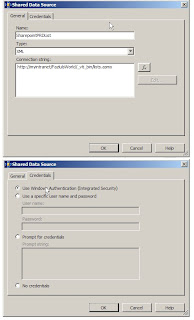
There is fairly an easy way to create a SSRS report on SharePoint List. By using an XML data source, we will get access to the SharePoint List. Then, create your own CAML query to manipulate SharePoint List Data. Here is the step by step example of creating SQL Reporting Services report on SharePoint List.   1. Create a Report Server Project in Visual Studio   2. Add a Data Source with following info types:   - Name : Should be the Data Source Name   - Type : XML   - Connection String : Should be the SharePoint Web Service for SharePoint List     [Example: http://myintranet/ts/FazlulsWorld/_vti_bin/lists.asmx ]   - Credentials: Windows Authentication or choose appropriate radio button   3. Add a New Report:   - Select Shared Data Source that you just created   - Paste the CAML Query into the Query String. You may have to find out the GUID for the SharePoint List and View on which you are re...

Emailing Exported File from SQL Server Reporting Services 2005

Image
I have created a sample class to email exported reports [PDF, Excel etc.] from SQL Reporting Services. To do that, I had to add a Report Viewer into the form and set Visible property to False. This web form actually grabs the parameter values from query string and process the report accordingly. You may call this form from another web page and pass the parameters like this:   =================================================== Email form calling function =================================================== private void emailReport() { try { string _period1 = Convert .ToString( Convert .ToDateTime(dtStartDate.Value.ToString()).ToString( "yyyyMM" )); string _period2 = Convert .ToString( Convert .ToDateTime(dtEndDate.Value.ToString()).ToString( "yyyyMM" )); string _division = Convert .ToString(ddDivisions.SelectedValue.ToString()); string _department = Convert .ToString(ddDepartment.SelectedValue.ToString()); string _employee = "" ; ...